Admin Guide / Integrations / HubSpot
Connect HubSpot to Rox
Connect your HubSpot CRM to Rox to bring your companies, contacts, and deals into the platform. Rox helps you research accounts, surface insights, and help your team prepare for customer interactions.
This guide walks through authorizing HubSpot, connecting Fivetran, and verifying that your data is syncing.
Before you start
You'll need:
Rox Organization Admin access: Only an Organization Admin can connect a CRM integration.
HubSpot authorization permissions: We recommend using a HubSpot Super Admin or an account with the permissions needed to install and authorize third-party applications.
Your HubSpot portal ID: You'll select a HubSpot account twice during setup. Both authorizations must use the same portal.
We recommend connecting the HubSpot portal your team uses in production.
Important: Setup requires two separate authorizations: one for Rox and one for Fivetran. Data will not begin syncing until both are complete.
Existing HubSpot connections
The updated HubSpot onboarding experience is available to all organizations.
If your organization already has an active HubSpot connection, you can opt in to the upgraded configuration experience. This provides access to the updated object selection, deal-stage mapping, field mapping, and account assignment workflows.
Existing connections do not need to repeat the initial authorization process to continue syncing HubSpot data.
1. Connect HubSpot to Rox
Sign in to Rox.
Select your username in the bottom-left corner and open Settings → Integrations.

Find HubSpot and select Connect (or Action Required, if shown).

In the integration dialog, select Connect HubSpot.

On the HubSpot sign-in screen, select Sign in to your HubSpot account.
Sign in using your HubSpot credentials or your organization's identity provider.
Under Choose an account, select the HubSpot portal containing your CRM data.
Confirm the portal ID and select Choose Account.
Review and approve the requested permissions.
You'll return to Rox, where the first connection step should display Completed.
Note: Do not select Create a new HubSpot account during authorization. This creates an empty portal rather than connecting your existing CRM.
2. Authorize Fivetran
Rox uses Fivetran to securely ingest HubSpot data into the managed warehouse used by the platform.
Return to the HubSpot integration dialog in Rox.
Select Map Key Values under the Fivetran authorization step.

Review the Fivetran notice and select Continue.

If the HubSpot integration displays Action Required, reopen it and select Map Key Values again.

In the Fivetran connector setup, review the Historical sync time frame. The default is Sync all historical data.
Select Authorize.

Choose the same HubSpot portal you selected in the first connection step.
Review the requested HubSpot permissions and select Connect app.

Confirm the connector displays Authentication Succeeded.
Select Save & Test.

Important: Select Save & Test, not Save for later. Saving for later does not activate the connector or begin synchronization.
About HubSpot permissions
The Fivetran HubSpot connector requests permissions to access CRM objects and their properties.

Some permissions are required for the connection. Others are optional and can be adjusted during authorization.
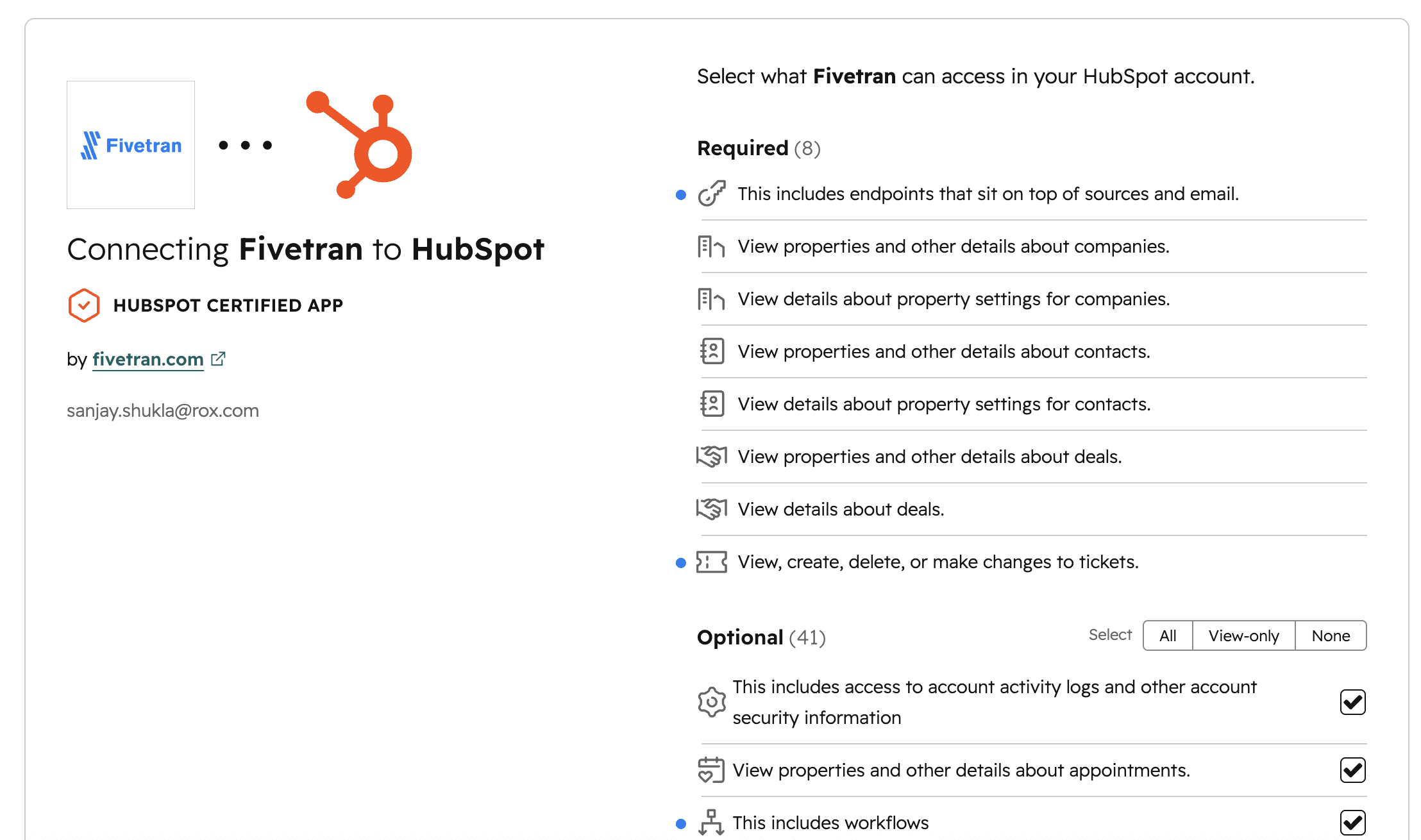
If your organization needs to restrict the requested permissions, review the available options with your Rox account team before completing setup. Removing access may affect which data Rox can synchronize.

3. Select objects to sync
After connecting HubSpot and Fivetran, select the HubSpot objects you want Rox to synchronize.
Review the available HubSpot objects.
Select the optional objects your organization needs, such as Contacts and Deals.
Companies and Owners are required.
Continue to the next configuration step.

4. Map deal stages
If you selected Deals during object selection, configure how your HubSpot deal pipeline maps to opportunity stages in Rox.
Select the HubSpot Pipeline your sales team uses to manage Deals.

Map each HubSpot deal stage to the corresponding Rox opportunity stage.

Review the mappings to ensure they reflect your organization's sales process.
Select Continue to proceed to field mappings.
Note: Rox supports one HubSpot deal pipeline. Only Deals from the selected pipeline appear as Opportunities in Rox.
If you did not select Deals during object selection, this step is skipped.
5. Configure field mappings
Field mappings determine how HubSpot properties correspond to fields in Rox.
Select the relevant object tab, such as Company, Contact, or Deal.
Review the default mappings between HubSpot properties and Rox fields.
Select the appropriate HubSpot property for each Rox field.
Keep required mappings in place and adjust optional mappings as needed.
Select Continue to proceed to account assignment.

You can create or update custom field mappings after onboarding under Settings → Integrations → HubSpot → CRM Mappings.
6. Configure account assignment
Account assignment determines which synchronized HubSpot Accounts each Rox user can access.

Review the assignment rule for each user.

Under Owner fields, select the HubSpot Account-to-User fields used to assign Accounts. Most organizations use the standard Owner field, but supported custom owner fields can also be selected.
Under Account filters, optionally add a filter to further restrict which Accounts are assigned.
Under Default rule, configure the assignment behavior for users without individual owner fields or filters.
Select Preview to verify which Accounts each user will receive.

Save the configuration and continue to the next step.
A user can have multiple owner fields and one additional account filter. Users without a matching assignment rule will not see Accounts in Rox.
After onboarding, you can update assignment rules under Settings → Integrations → HubSpot → Account Assignment.
7. Test sync
Before completing setup, test the HubSpot integration to verify that the configuration is valid.
Select Test sync.

Review any errors or warnings returned by the test.
If an issue is identified, return to the relevant onboarding step, correct the configuration, and run the test again.
Once the test succeeds, select Submit to finalize the connection.
After submission, Fivetran begins the initial synchronization. HubSpot records will appear in Rox once the synchronization completes.

You can return to Settings → Integrations → HubSpot to review the connection and manage its configuration.
Verify your data in Rox
After you submit the configuration, Fivetran begins the initial synchronization. The first sync typically takes at least 30 minutes and may take several hours for larger HubSpot portals.
Once synchronization completes, confirm that the expected Accounts, Contacts, and Opportunities are available in Rox.
You can return to Settings → Integrations → HubSpot to review the connection status.
Troubleshooting
The HubSpot connection fails or returns a permissions error: Confirm that you have Organization Admin access in Rox and the necessary permissions to authorize the application in HubSpot.
The integration still displays Action Required: Reopen the Fivetran connector and confirm that authentication succeeded. If necessary, repeat the Fivetran authorization and select Save & Test.
The integration shows a failed status: A previous or incomplete connection attempt may be interfering with the new connection. Contact your Rox account team rather than repeatedly retrying the authorization.
The wrong HubSpot portal was connected: Contact your Rox account team before disconnecting or attempting to reconnect. The existing connection may need to be cleared.
No accounts appear after synchronization: Confirm that the initial synchronization has completed. If data has synchronized successfully but users cannot see their accounts, review the organization's account assignment rules.
Reauthenticate a connection: If the integration requires action or its authorization has expired or been revoked:
Open Settings → Integrations → HubSpot.
Open the integration settings.
Select Re-authenticate and sign in using the appropriate HubSpot account.
If Fivetran also requires authorization, reconnect it and select Save & Test.
Return to Rox and confirm the connection is healthy.
Next steps
Once HubSpot is connected, your team can use synchronized CRM data throughout Rox.
See Syncing with HubSpot to learn about supported objects, field mappings, deal pipelines, account assignment, and integration limitations.
If you need assistance, contact your Rox account team or help@rox.com.