Admin Guide / Governance
Access Provenance
Trace why and how users can access records and fields, and identify who else has access.
Overview
Access Provenance explains the current "access paths" created by Rox Governance.
It consists of paths coming from either ownership, Pods, hierarchies, sharing, cascades, organization-wide defaults(OWDs), or Permission Sets.
What is an "Access Path"?
An access path is the chain of Governance settings that connects a user to a record or field.
A user may have multiple paths to the same record, and Rox applies the most permissive access available.
An example: Access through a user-based hierarchy

The graph’s blue boxes represent users, green boxes represent Pods, and the green border around the Account represents Full access. You can find this info in legend for any access provenance graph.
As you can see in the above picture, Ishan has FULL access to the Instituto Account. How?
Ishan is a member of the CXO Pod.
The CXO Pod sits above the Sales Global Leader Pod.
Stephen is a member of the Sales Global Leader Pod.
Stephen is the Account’s Primary Owner, giving him Full access.
The user-based hierarchy rolls Stephen’s Full access up to members of the CXO Pod, including Ishan.
This access path shows how access travels through connected Rox Governance entities.
Why use Access Provenance?
Consider a global sales organization with thousands of users, multiple territories, and several management levels. After a territory reorganization, a strategic Account moves from the EMEA team to the North America team. But an EMEA Sales Director can still access its Deals and activity.
That access could come from an outdated Pod membership, the management hierarchy, ownership, direct sharing, an OWD, or a Permission Set such as 'View All'.
Access Provenance shows the exact paths and access level. The administrator can determine whether the access is intentional and remove only the incorrect grant without disrupting access for other teams.
What you can investigate
User Access: Why can this user access a record or field, and how?
Record Access: Who can access this record, and how?
Field Access: Who can read or edit this field?
Before you begin
☑ Confirm you can manage Governance settings.
☑ Identify the user, record, or field you want to investigate.
☑ Have the record ID ready when using Record Access.
Investigate access using Access provenance
Open your profile menu at the bottom left of Rox and select Governance. In the console’s left sidebar, select Access provenance under Audit.
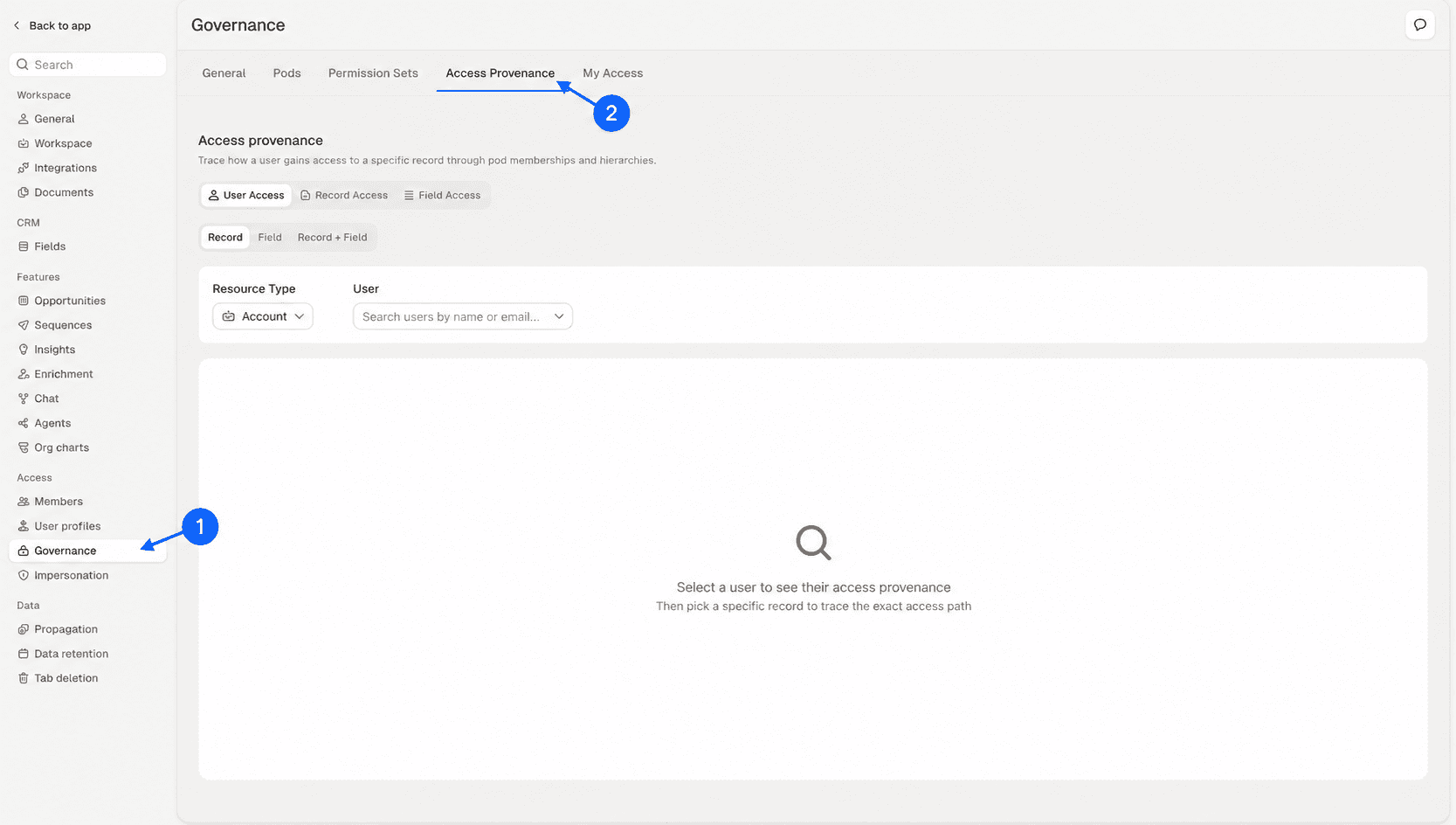
Choose a view based on what you want to investigate.
1. User Access
Use User Access to understand what one user can access, and why.
Record: Trace access to a record
1. Select the resource type
Click on User access → "Record" tab → Select the resource type

2. Select the right user you want to investigate

3. Select one of their accessible records
Enter the record ID or name.

4. Review the paths connecting the user to the record.
Scroll down to view the complete legend. For complex graphs, select Full screen option at the bottom of the graph. You can then reposition nodes for a clearer view.

5. Click on a Pod to inspect its members

Field: Review a user’s field access
1. Select the resource type
Click on User access → "Field" tab → Select the resource type

2. Select the right user you want to investigate

3. Select a field to inspect (optional)

4. Review the paths connecting the user to the field.
For complex graphs, select Full screen option at the bottom of the graph

Record and Field
1. Select the resource type
Click on User access → "Record + Field" tab → Select the resource type

2. Select the right user you want to investigate

3. Select an accessible record

4. Select the field (optional)

5. Review how resource, record, and field access combine
For complex graphs, select Full screen option at the bottom of the graph

2. Record Access
Use Record Access to identify everyone who can access a record, and why.
1. Select Record Access and choose resource type

2. Paste the record ID

3. Review its access paths
Scroll down to view the complete legend. For complex graphs, select Full screen option at the bottom of the graph. You can then reposition nodes for a clearer view.

4. Select a Pod to inspect the users receiving access through it

3. Field access
Use Field Access to identify who can read or edit a field.
1. Select Field Access and choose resource type

2. Select the field

3. Choose the minimum access: Read or Edit.

4. Review the users and settings granting that access
For complex graphs, select Full screen option at the bottom of the graph. You can then reposition nodes for a clearer view.
Select a Pod or Permission Set to inspect the users receiving access through it.

Best practices
Check broad grants first. OWDs, 'View All', and 'Modify All' sets can affect large groups of users.
Protect sensitive fields intentionally. Set the baseline(OWDs) to Hidden when values must be hidden or redacted, then use Permission Sets to grant masked access (such as Hash or Last 4 characters) or full visibility only to users who need it.\ If everyone with record access may read a field but only selected users should edit it, use a Read-only OWD and grant Editable access through Permission Sets.\ Use Field Access to verify the result.
Preview and verify changes. Use Simulate removal before changing a field Permission Set, then rerun Access Provenance.

Fix the source of access. Update the Pod, hierarchy, sharing, ownership, baseline(OWD), or Permission Set identified by the graph. Review every path before changing access.