Run with Rox: Getting Started
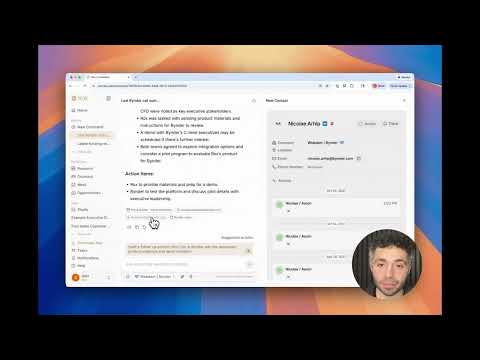
Command is your everyday querying engine — the daily driver for all your workflows.
The power of Command is two-fold:
- Query everything. Instantly search across all your data in Rox — including email, calendar, CRM, call recordings, and more — as well as the public web.
- Take action with natural language. Simply describe what you want to do, and Command handles the rest. For example, you can:
- Generate and send emails
- Update opportunities
- Schedule calendar events
- Create interative, shareable websites in seconds
In this guide, we’ll walk you through how to use Command as your single hub for questions, insights, and actions.
Command Landing Page
I navigate to Command by clicking "New Command" on the left panel
I am brought to the Command Landing Page. Here, you can see your previous sessions and start a new sessions by just typing.
Command works on a specific account. Toggle the account in the Company toggle if you want to switch accounts.

Verify with Citations
All of Command's outputs are grounded in verifiable citations.
Citations will cite notes, transcripts, emails, meetings, and web sources for any of its responses. You can click into these sources to verify responses and gather additional information for your workflow.
In this example, I've asked Command "What happened in our last call?"
Command has pulled information from meetings, contacts, and notes. All are cited in the final response. I click into these sources to learn more.

Suggested Actions
Command will provide you with tailored suggested actions after each response. These are great ways to keep your workflow moving — helping you seamlessly take the next step and enter flow state.
Here, command has recommended I send a follow-up email to one of my main touch points on this account, let's do it!

Saving Prompts
Saving prompts is extremely powerful. It lets you repeat a workflow with just one click.
You can save a prompt that you have just sent to the agent, or save a prompt in the menu bar by clicking the bookmark icon.
Run saved prompts by clicking the bookmark icon on the menu bar and selecting the prompt you want to run.
Use your saved prompts for those prompts that you come back to again and again!

Sharing Conversations
Share conversations with your team!
Click the share button in the top right of command and copy the shareable link to your clipboard.

And with that, you are ready to command your agent swarm!
Check out our guides for Key Workflows in Command! :point_down:
run-with-rox-engage-your-accounts